Complete statement processing process

Detailed step-by-step guide—from uploading a bank statement to downloading the transformed file in GPC or SEPA XML format.

1 Dashboard

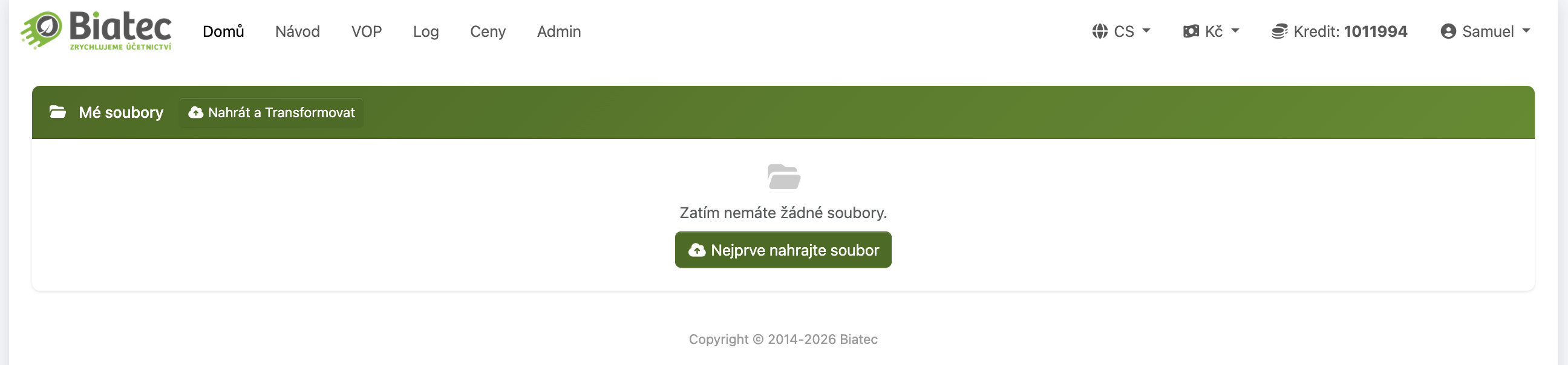
After logging in, a blank dashboard appears with the Upload New File button. If you do not have any uploaded files yet, you will see an informational message with instructions on how to get started.
Prazdny dashboard
Home screen - empty dashboard with a button to upload a file

2 File upload and settings

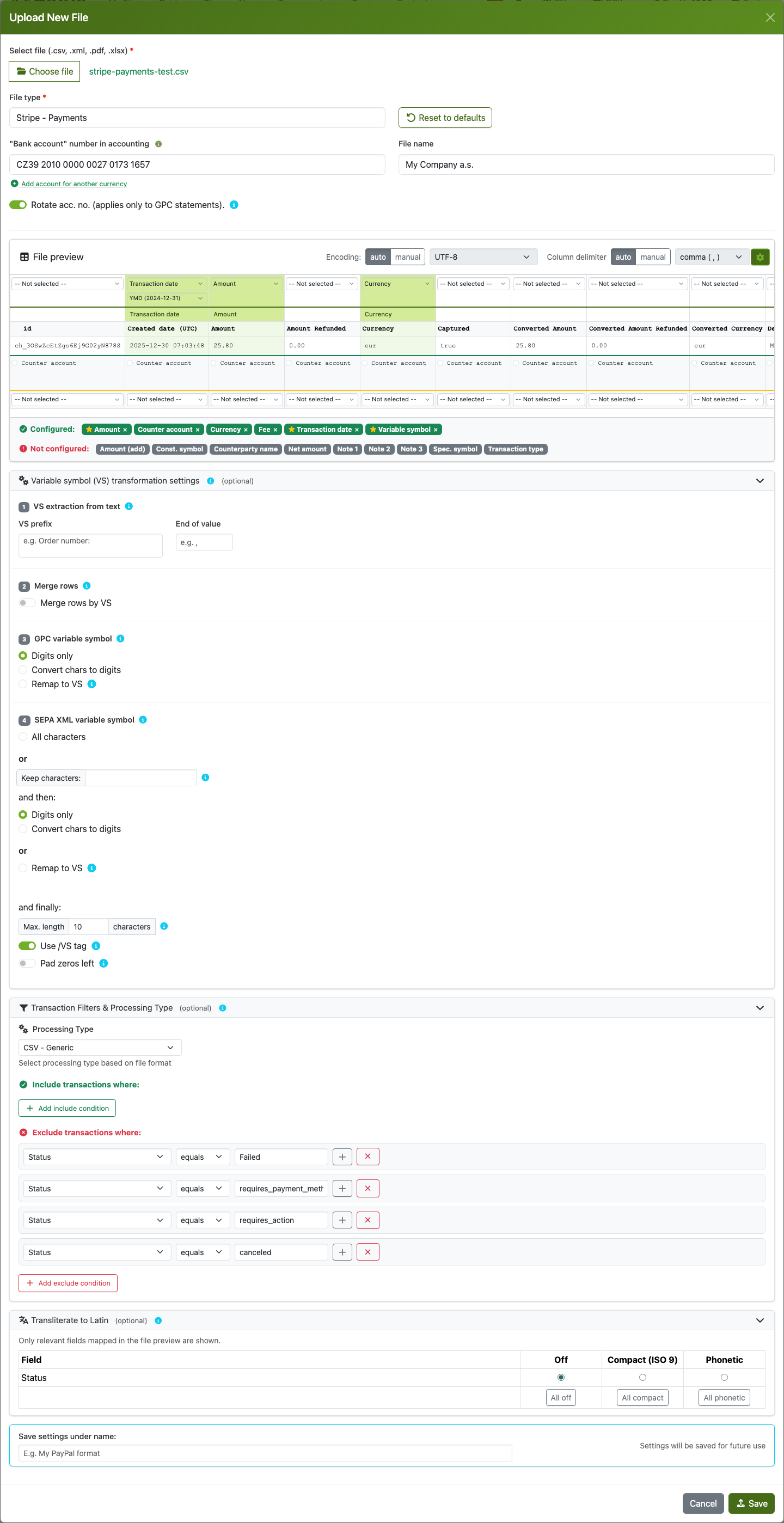
Click the Upload New File button. A modal dialog with settings will open. Click on the numbers in the image to view a description.
Upload modal with annotations
1
Select the file to transform. Supported formats: CSV, XML, PDF, XLSX.
2
Select the type of bank statement or payment gateway. Column, filter and VS settings will be pre-populated according to this.
3
Returns all settings to the default values according to the selected file type.
4
The account number as you record it in your accounting records (e.g. 123456/0900 or IBAN). Use the „+“ button below the field to add additional account numbers for other currencies in the statement.
5
Optional file description for your reference (e.g. „Extract January 2024“).
6
Sample data from the file. In the drop-down lists above the columns, assign the meaning of the essential columns (date, amount, name, description...).
7
Source file encoding (UTF-8, Windows-1250...) and column separator (comma or semicolon). You only need to change it if the preview is displaying incorrectly.
8
First row = mapped columns (to be used in the transformation). Second row = unmapped (you can still assign or ignore them).
9
Stepwise setting of the variable symbol transformation. Sequentially: extraction → merge → formatting for GPC → formatting for SEPA XML.
10
If the VS column contains compound text (e.g., „Order Number: ABC123, Code: XYZ“ → „ABC123“), set the prefix and terminating character.
11
Transactions with the same VS are merged into one. The amounts are added, the oldest date is used, the descriptions are merged.
12
The GPC format requires exactly 10 digits. This option leaves only the digits and pads with zeros from the left. Alternatively, you can convert letters to digits (A=0, B=1...).
13
Replaces the VS values according to the mapping you specify. Specify pairs: the original value in the source file and the new value in the transformed file.
14
VS formatting settings for SEPA XML output (camt.053). XML is more flexible than GPC - it also allows text VS.
15
Retain the original VS format including letters, dashes and other characters (e.g. INV-2024-001 will remain as INV-2024-001).
16
If you want to keep some characters (e.g. - or /) in „Digits only“ mode, enter them here. Example: INV-2024-001 with the character - → -2024-001.
17
Decide whether to filter out other characters (leaving only digits) or convert letters to digits (A=0, B=1...).
18
Replaces the VS values according to the mapping you specify. Specify pairs: the original value in the source file and the new value in the transformed file.
19
Retains the first N characters of the VS and removes the rest. For SEPA XML the maximum is 35 characters (ISO 20022 limit). But it depends on your accounting program - e.g., Wellbeing accepts 20 characters if you turn off /VS.
20
If enabled, /VS1234567890/SS/KS0308 is inserted into EndToEndId. For Cool, turn off (the number itself is sufficient). For FlexiBee, leave on.
21
Completes VS with zeros from the left to the length set in the „Shorten to“ field. Example (10 characters): 1234567 → 0001234567.
22
Here you decide which rows are included and excluded from the final statement (e.g. ignore cancelled or failed payments).
23
Specifies how the file is processed. You don't need to change it if you have chosen the file type correctly. For most CSV files, it will be set to „CSV - Generic“.
24
Inclusion conditions: only transactions meeting these rules will appear in the output.
25
Exclusion conditions: transactions meeting these rules will be removed from the output (e.g. Status = Failed, canceled).
26
If your accounting program does not support characters like Cyrillic and displays them illegibly, convert them to readable Latin characters. Two modes: Abbreviated (ISO 9) or Phonetic.
27
Saves the current settings (account number, file name, column mapping, VS, filters...) for future use. The next time the same file type is uploaded, they will be loaded automatically.
28
Uploads the file with all settings and starts the transformation.
Click on the red numbers to view a description of each section of the form
Tip: Uploading a file is completely free and does not consume any credits. Credits are deducted only when unlocking the transformed file.

3 Transaction filters

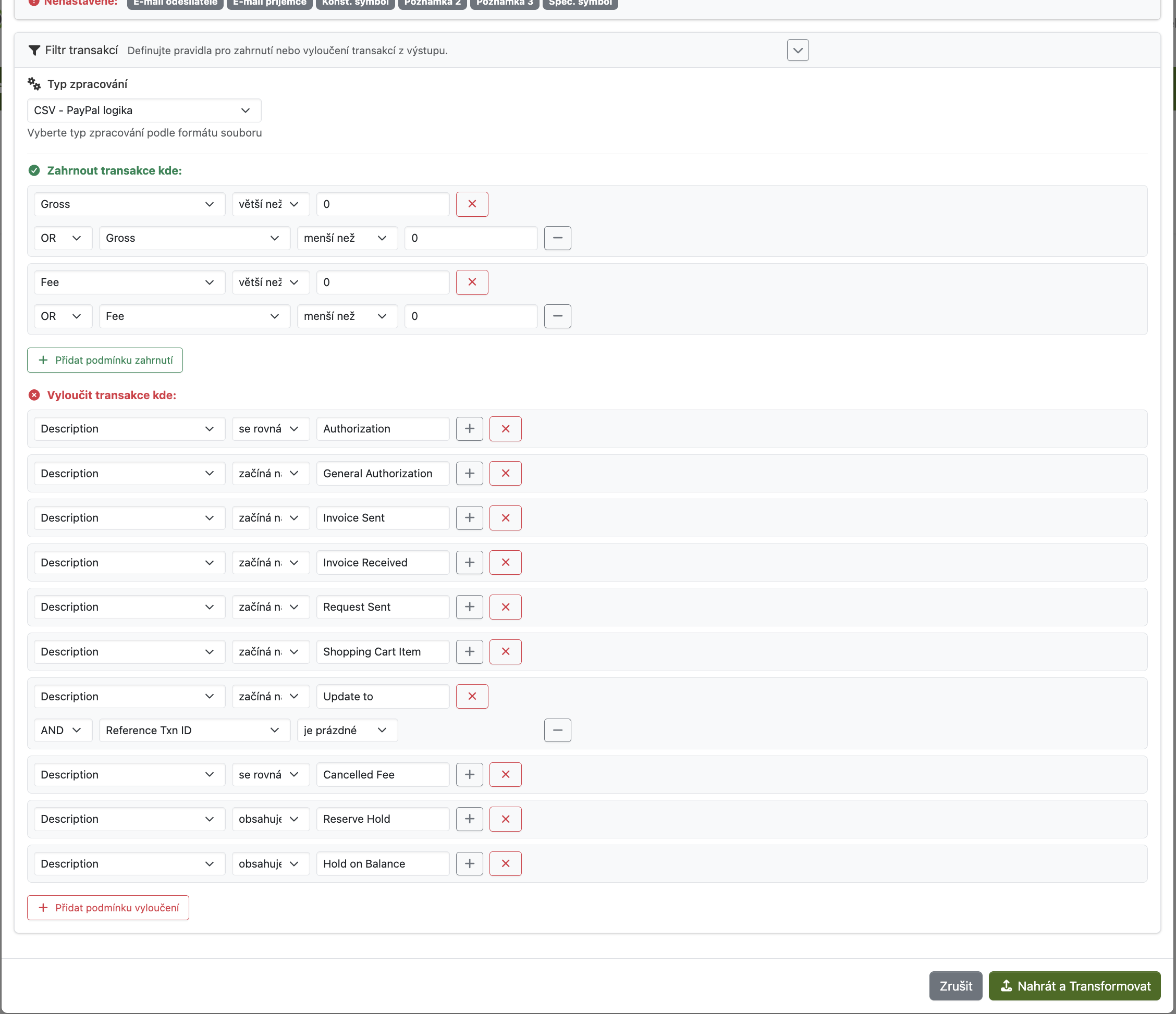
In the Transaction Filters section, you can set rules that automatically modify or exclude certain transactions during transformation. Preconfigured rules are already set for system file types.

Each rule contains:

  • Condition - which column and what value (e.g. "Transaction type contains Fee")
  • Action - what should happen to the transaction (exclude, change value, etc.)
Transaction filters
Preconfigured transaction filters for the selected file type

5 Nahrany subor v zozname

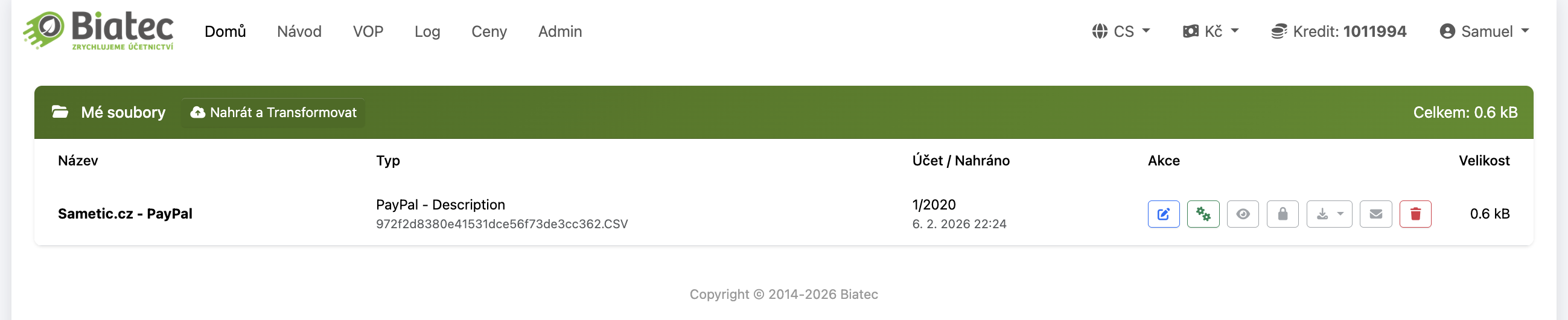
Po ulozeni sa subor objavi v zozname na dashboarde. Kazdy subor ma sadu akcnych tlacidiel:

  • Transformovat - spusti konverziu do GPC/SEPA formatu
  • Nahlad - zobrazi nahlad transformovaneho suboru
  • Odomknut - odomkne subor pre stiahnutie (spotrebuje kredity)
  • Stiahnut - stiahne GPC alebo SEPA XML subor
  • Upravit - otvorí nastavenia suboru
Zoznam suborov
Nahrany subor v zozname s akcnymi tlacidlami

6 Spustenie transformacie

Kliknite na ikonu Transformovat. System spracuje vas bankovy vypis a vytvori vystupny subor vo formate GPC (pripadne SEPA XML). Transformacia zvycajne trva len niekolko sekund.

Spustenie transformacie
Spustenie transformacie bankoveho vypisu

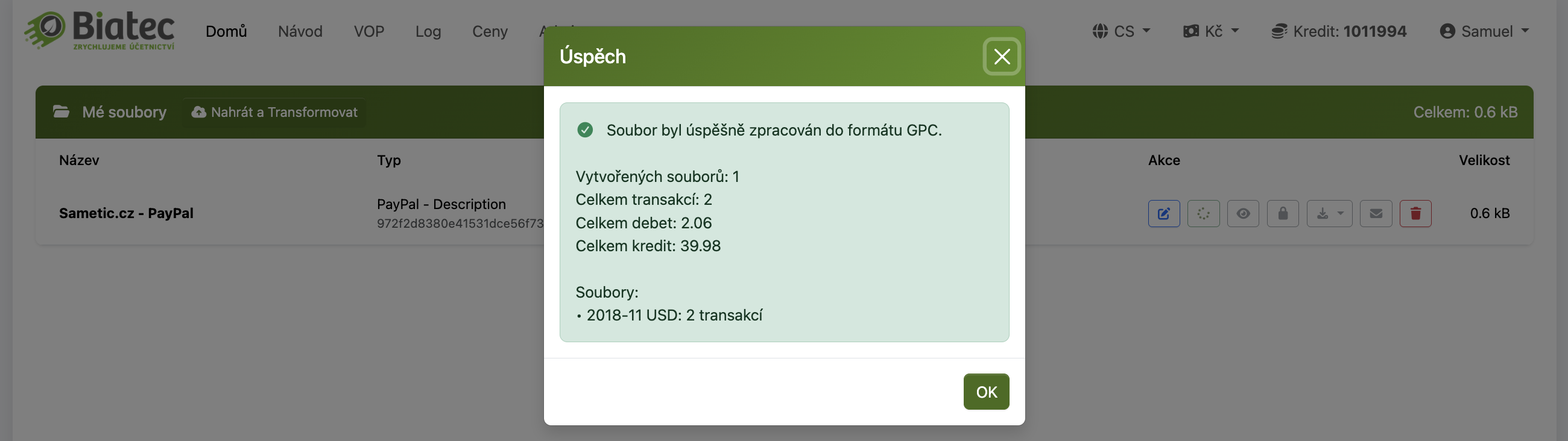
7 Vysledok transformacie

Po uspesnej transformacii sa zobrazi suhrn s informaciami:

  • Pocet spracovanych transakcii
  • Pocet vylucenych transakcii (podla filtrov)
  • Celkova suma (debet/kredit)
  • Obdobie transakcii
Vysledok transformacie
Suhrn vysledku transformacie - pocet transakcii, suma, obdobie

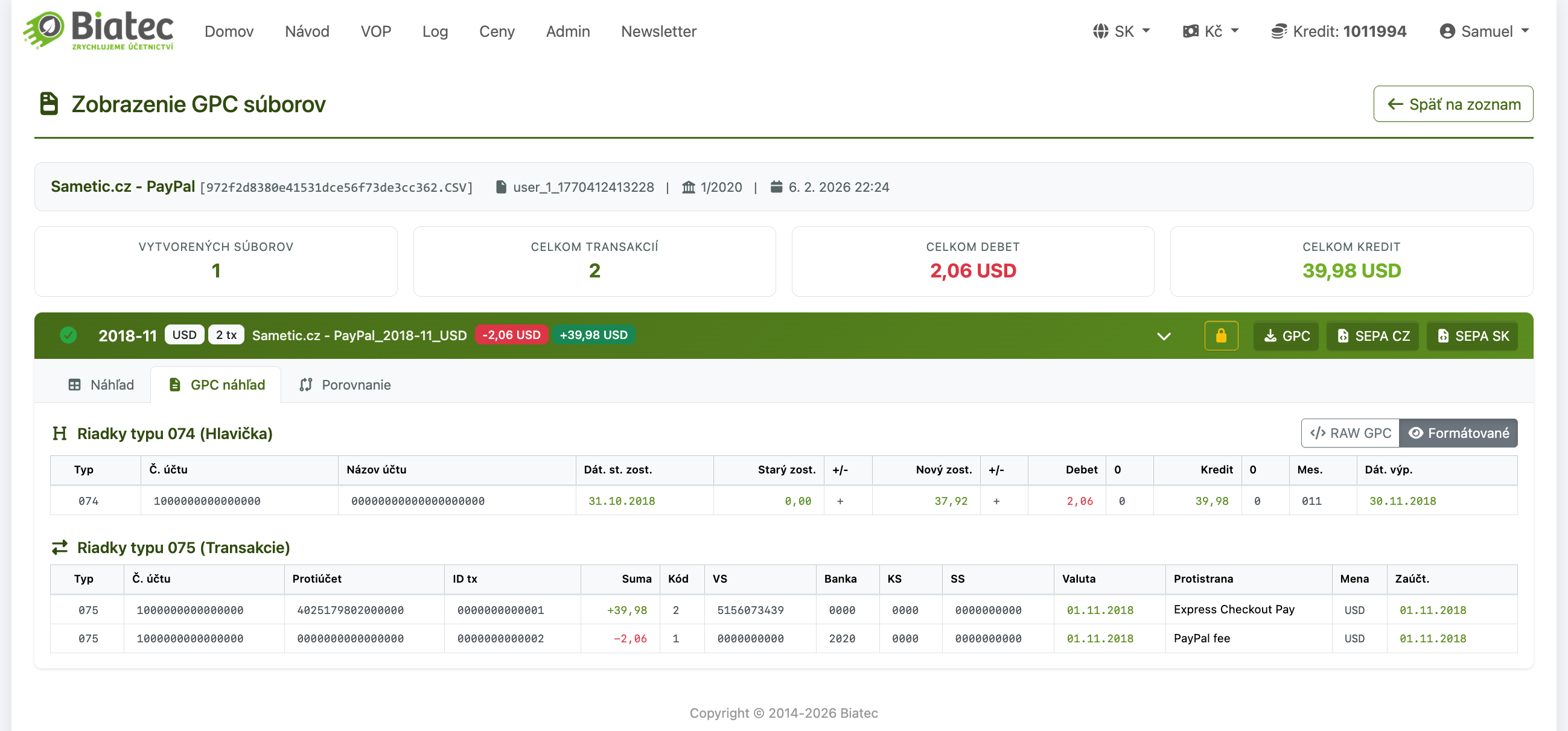
8 Zobrazenie GPC nahladu

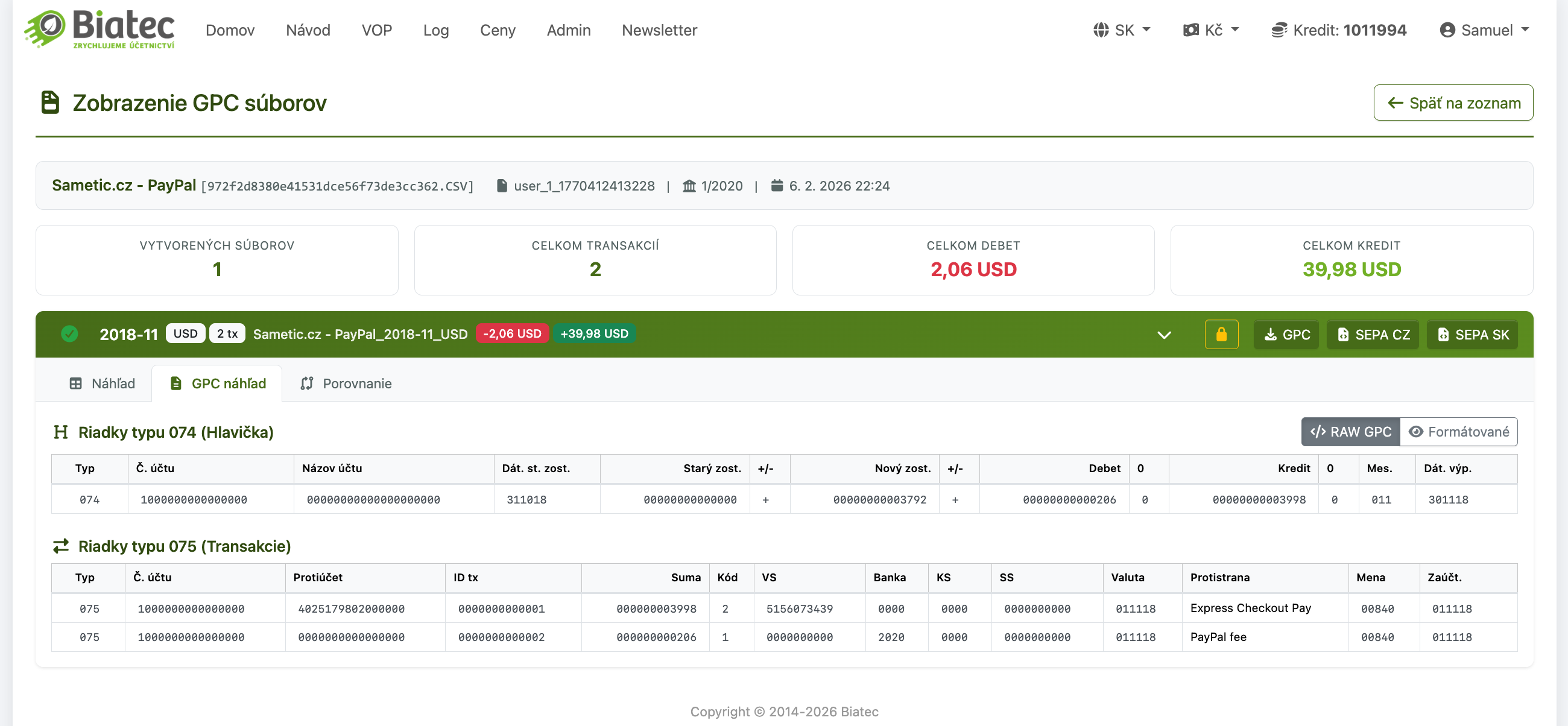
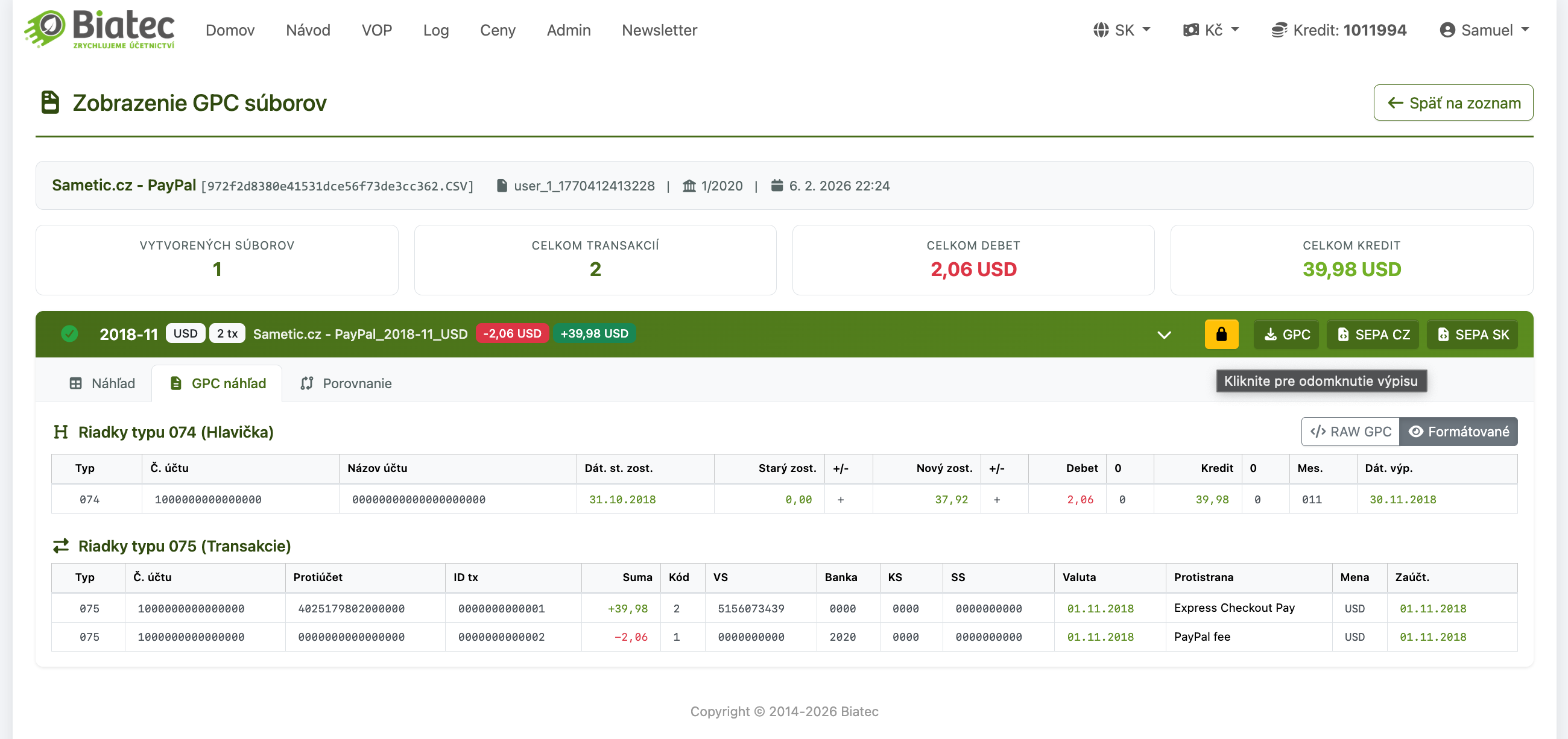
Kliknite na ikonu Nahlad pre zobrazenie transformovaneho suboru. V založke Nahlad su dostupne dva rezimy zobrazenia:

  • RAW - surovy text GPC suboru presne tak, ako bude ulozeny
  • Formatovane - prehliadna tabulka s farebnymi polozkami pre lepsiu citatelnost
GPC nahlad RAW
GPC nahlad - RAW rezim (surovy text)
GPC nahlad formatovane
GPC nahlad - formatovane zobrazenie s farebnymi polozkami

9 Odomknutie vypisu

Transformovany subor je najskor zamknuty . Pre stiahnutie je potrebne ho odomknut, co spotrebuje kredity (1 riadok vstupného výpisu = 1 kredit).

Kliknite na ikonu Odomknut. Zobrazi sa dialog s poctom potrebnych kreditov. Po potvrdeni bude subor odomknuty a pripraveny na stiahnutie.
Odomknutie suboru
Dialog na odomknutie suboru - zobrazuje potrebny pocet kreditov
Pozor: Ak po odomknuti zmenite nastavenia suboru a spustite novu transformaciu, budete opatovne vyzvanai na odomknutie a spotrebujete dalsie kredity.

10 Stiahnutie suborov

Po odomknuti su dostupne nasledovne formaty na stiahnutie:

  • GPC - standardny format pre ceske a slovenske uctovne systemy (Pohoda, Money S3, ...)
  • SEPA XML CZ - format camt.053 s ceskymi IBAN/BIC udajmi
  • SEPA XML SK - format camt.053 so slovenskymi IBAN/BIC udajmi

Stiahnutie suboru
Moznosti stiahnutia - GPC, SEPA XML CZ, SEPA XML SK

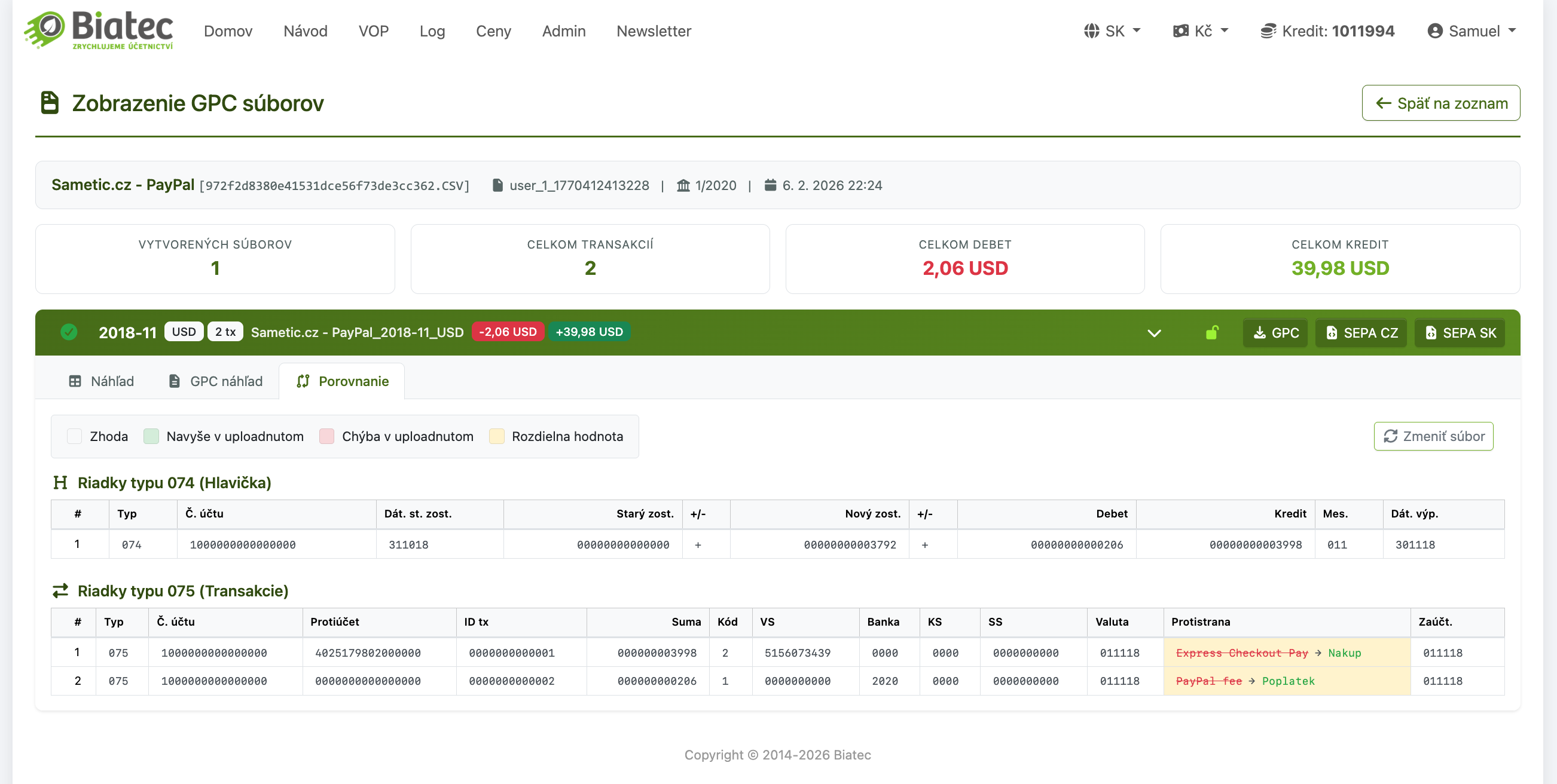
11 Porovnanie s inym GPC

Biatec ponuka moznost farebneho porovnania vygenerovaneho GPC suboru s referencnym suborom. Tato funkcia je uzitocna na overenie spravnosti transformacie.

V založke Porovnanie nahrajte referencny GPC subor. System zvyrazni rozdiely:

  • Zelene - zhodne udaje
  • Cervene - odlisne udaje
Farebne porovnanie GPC
Farebne porovnanie dvoch GPC suborov - rozdiely su zvyraznene

Zhrnutie procesu

Kompletny proces spracovania bankoveho vypisu v 6 hlavnych krokoch:

  1. Nahrat - nahrajte bankovy vypis (CSV, XML, XLS, PDF)
  2. Namapovat - skontrolujte alebo upravte mapovanie stlpcov
  3. Nastavit filtre - volitelne upravte pravidla pre transakcie
  4. Transformovat - spustite konverziu do GPC/SEPA formatu
  5. Odomknut - odomknite subor pomocou kreditov
  6. Stiahnut - stiahnite hotovy subor a importujte do uctovnictva